
How to Set Up Belsmart with HubSpot: Step-by-Step Integration Guide
Connecting an outbound dialer to HubSpot is one of the highest-leverage configuration tasks a sales operations team can complete. Done properly, a Belsmart HubSpot integration gives agents full contact context on every connect, logs every call automatically to the HubSpot timeline, and lets call dispositions trigger HubSpot Workflows — removing manual data entry from the calling process entirely. HubSpot’s own sales research has repeatedly found that reps spend only about a third of their working day actively selling, with administrative work consuming much of the rest; integration is how that ratio improves.
This guide walks through the full setup in eight steps, then covers testing, screen pop configuration, disposition mapping, and the issues teams most commonly hit. For the broader evaluation framework behind these decisions — and how HubSpot compares with Salesforce, Zoho, and others — see the pillar guide on CRM integration with outbound dialer software.
Prerequisites: What You Need Before Starting
Confirm these five items before beginning — missing any of them is the most common cause of a stalled setup:
- HubSpot admin access. Connecting an app requires Super Admin permissions (or App Marketplace access granted by one).
- A Belsmart account with CRM integration enabled. Check the CRM integration feature page and confirm your plan includes it.
- A defined disposition taxonomy. Decide your 8–15 call outcomes (e.g., “Connected — Interested,” “Voicemail,” “Wrong Number”) before configuration. Retrofitting dispositions after launch corrupts historical reporting.
- Clean HubSpot lists. Deduplicate contacts and verify phone number formatting (E.164 format, e.g., +14155550123, prevents most sync failures).
- Consent and DNC properties identified. Know which HubSpot property stores do-not-call status — the integration will read it at dial time for TCPA compliance.
How to Set Up the Belsmart HubSpot Integration: 8 Steps
Connect your HubSpot account
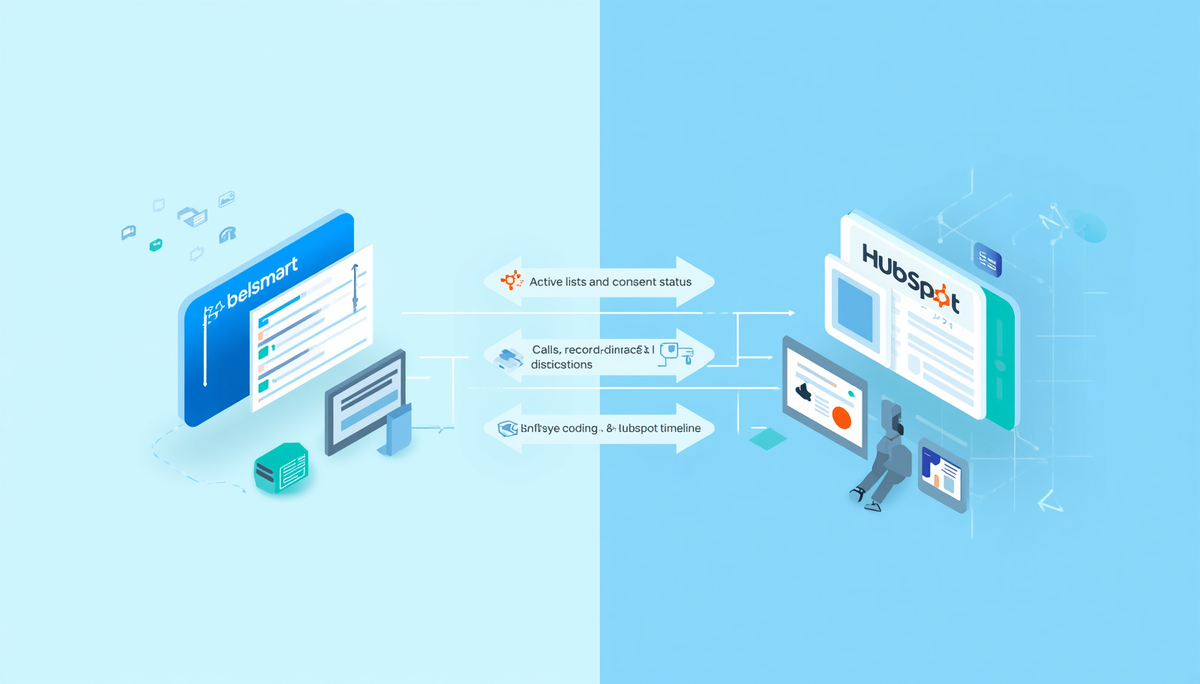
In the Belsmart dashboard, open Settings → Integrations → HubSpot and select Connect. You’ll be redirected to HubSpot’s OAuth screen — sign in with an admin account and choose the correct HubSpot portal if you manage more than one.
Grant the required permissions
HubSpot will display the requested scopes: read access to contacts and lists, and write access to call engagements and timeline events. Approve them all — a partial grant produces an integration that reads contacts but silently fails to log calls, which is the hardest failure mode to diagnose later.
Map contact fields
Match HubSpot properties to dialer fields: phone number, first/last name, company, owner, lifecycle stage, and your DNC/consent property. Map only the fields agents actually need on screen — over-mapping slows the screen pop and clutters the agent view.
Sync HubSpot lists as dialing campaigns
Select the HubSpot active lists that should feed dialing campaigns. Active lists are the correct choice for ongoing outreach: when a contact enters or leaves the list in HubSpot, the dialing queue updates automatically. Static lists suit one-time campaigns only.
Configure the screen pop
Choose what agents see when a call connects: the HubSpot contact card with recent timeline activity, open deals, and prior call dispositions. Detailed options are covered in the screen pop section below.
Map call dispositions to HubSpot outcomes
Connect each dialer disposition to a HubSpot call outcome and, where useful, a custom contact property. This mapping is what makes calling data reportable inside HubSpot — see the disposition mapping section for a recommended starting matrix.
Enable call logging and recordings
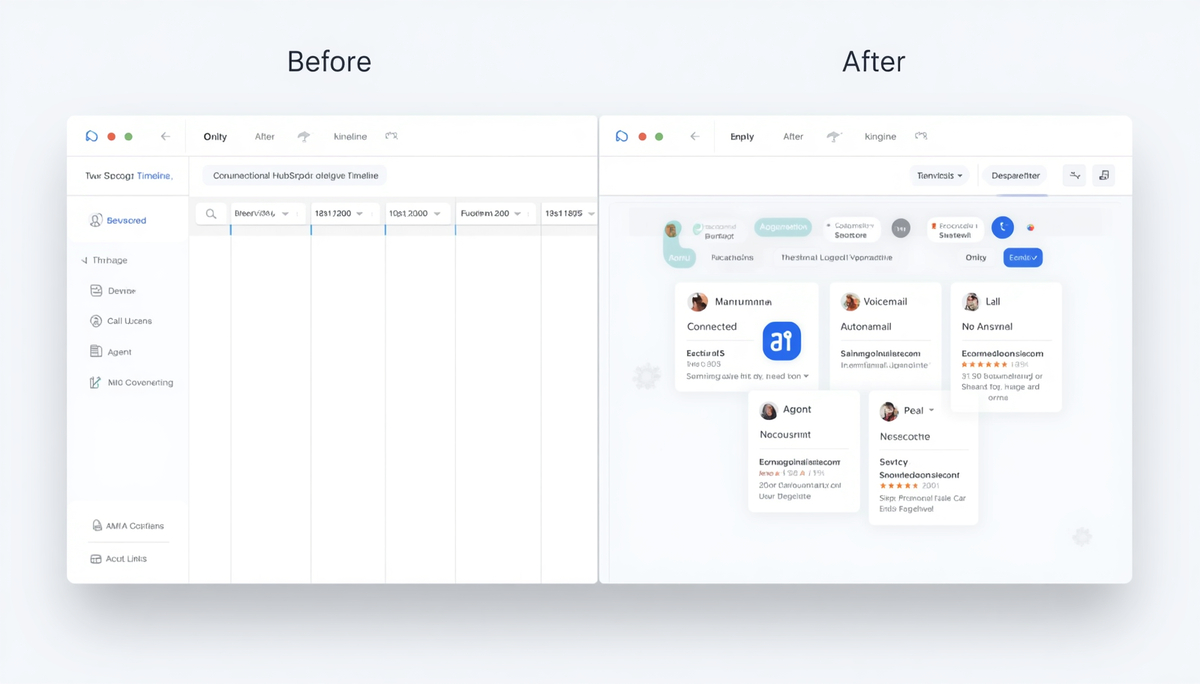
Turn on automatic call logging so every call writes to the contact timeline as a native call engagement — with duration, outcome, notes, and a recording link. Confirm your recording retention settings align with GDPR and regional requirements before enabling recording links.
Set up HubSpot Workflow triggers
In HubSpot, build Workflows that enroll contacts based on the properties your dispositions update. Two proven starters: “Voicemail ×3” enrolls the contact in an email sequence; “Connected — Interested” creates a deal and notifies the owner. This step converts the integration from a logging tool into an automation engine.
Testing the Integration: A 10-Minute Verification
Never launch to the full team untested. Run this sequence with one agent seat and a test contact:
- Create a test contact in HubSpot with your own mobile number, and add it to a synced active list.
- Confirm the contact appears in the dialing queue within the expected sync interval.
- Place the call. Verify the screen pop fires on connect and shows the correct record.
- Select a disposition and end the call.
- Open the HubSpot contact: confirm a call engagement appears on the timeline with the correct outcome, duration, and recording link.
- Verify the Workflow tied to that disposition enrolled the contact.
- Remove the contact from the list in HubSpot and confirm it leaves the dialing queue.
Operational benchmark: after go-live, track two KPIs weekly — CRM data completeness (% of calls with a structured disposition; should approach 100%) and after-call work time (should drop materially once automatic logging replaces manual entry). If either number isn’t moving, the integration is configured but not adopted.
How Should You Configure the HubSpot Screen Pop?
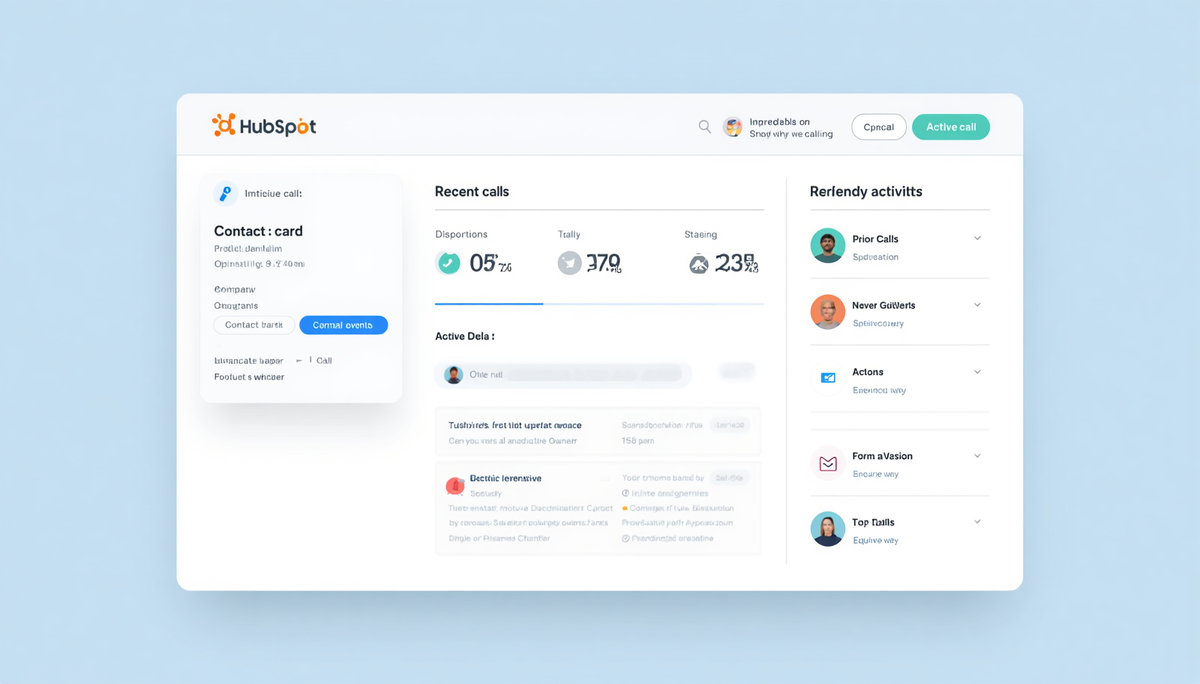
A HubSpot screen pop should answer three questions in the first two seconds: who is this, what happened last, and why are we calling? Configure it to show:
- Identity block: name, company, lifecycle stage, contact owner.
- Last three timeline events: prior calls with dispositions, recent emails, form submissions.
- Open deal (if any): stage and amount — this changes the conversation entirely.
- Campaign context: which list the contact came from, so the agent knows the reason for the call.
Resist adding more. Screen pops fail through clutter more often than through missing data: an agent scanning fifteen fields during the greeting delivers a worse experience than one scanning four.
Disposition Mapping: The Recommended Starting Matrix
Call disposition sync is where most integrations either create clean, reportable data or quiet chaos. A proven starting matrix:
| Dialer disposition | HubSpot call outcome | Workflow trigger |
|---|---|---|
| Connected — Interested | Connected | Create deal, notify owner, schedule follow-up task |
| Connected — Not Interested | Connected | Set lifecycle to “Closed lost,” suppress from list 90 days |
| Connected — Callback Requested | Connected | Create task at requested time, keep in queue |
| Voicemail Left | Left voicemail | After 3rd voicemail: enroll in email nurture sequence |
| No Answer | No answer | Auto-reschedule per retry rules (different daypart) |
| Wrong Number | Wrong number | Clear phone property, flag for data enrichment |
| Do Not Call | — | Set DNC property, remove from ALL lists immediately |
Common implementation mistake: letting each rep invent free-text outcomes. Within a month you’ll have “VM,” “vmail,” “left msg,” and “voicemail” as four different values — and no reliable reporting. Lock the taxonomy in the dialer; make selection mandatory before the next call.
Troubleshooting Common Issues
| Symptom | Likely cause | Fix |
|---|---|---|
| Contacts not appearing in dialing queue | Static list selected, or phone numbers not in E.164 format | Switch to an active list; run a formatting fix on the phone property |
| Calls not logging to timeline | Write scope not granted during OAuth | Disconnect and reconnect the integration, approving all requested permissions |
| Screen pop shows wrong contact | Duplicate contacts sharing a phone number | Run HubSpot’s duplicate management tool; define a merge policy |
| Workflows not firing | Trigger built on the call engagement instead of a contact property | Map dispositions to a contact property and trigger enrollment on that property |
| Duplicate call records | A second calling tool (e.g., HubSpot’s native calling) also logging | Disable call logging in the redundant tool; one system of record only |
Summary
A complete Belsmart HubSpot integration comes down to eight configuration decisions: connect and authorize, map fields, sync active lists, configure the screen pop, map dispositions, enable logging, and wire up Workflows — then verify with a single-seat test before team rollout. The two disciplines that determine long-term success are a locked disposition taxonomy and Workflow triggers built on contact properties. Get those right, and calling data becomes as reliable in HubSpot as form fills and email opens. The same architectural principles apply to other CRMs — the Zoho CRM connector follows an equivalent flow with Zoho-specific module mapping.
Frequently Asked Questions
How long does the Belsmart HubSpot integration take to set up?
The core connection and field mapping typically take under an hour. Allow half a day total for disposition mapping, Workflow configuration, and single-seat testing before rolling out to the full team.
Does the integration log calls automatically in HubSpot?
Yes. With automatic call logging enabled, every call writes to the HubSpot contact timeline as a native call engagement, including outcome, duration, notes, and a recording link — no agent data entry required.
Can HubSpot Workflows trigger from call dispositions?
Yes, indirectly and reliably: map each disposition to a HubSpot contact property, then build Workflow enrollment triggers on that property. This supports follow-up tasks, sequence enrollment, deal creation, and owner notifications.
Should I use active lists or static lists for dialing campaigns?
Use active lists for ongoing outreach — contacts enter and exit the dialing queue automatically as they meet or leave the list criteria. Static lists are appropriate only for one-time, fixed-audience campaigns.
How does the integration handle do-not-call contacts?
The integration reads the designated DNC/consent property from HubSpot at dial time and suppresses restricted numbers automatically. A “Do Not Call” disposition should also write back to that property and remove the contact from all lists immediately.
What if I use HubSpot’s built-in calling as well?
Choose one system of record for call logging. Running two tools that both write call engagements creates duplicate records and unreliable reporting — disable logging in whichever tool is not the primary dialer.
Ready to put this guide into practice?
Start Your HubSpot Integration